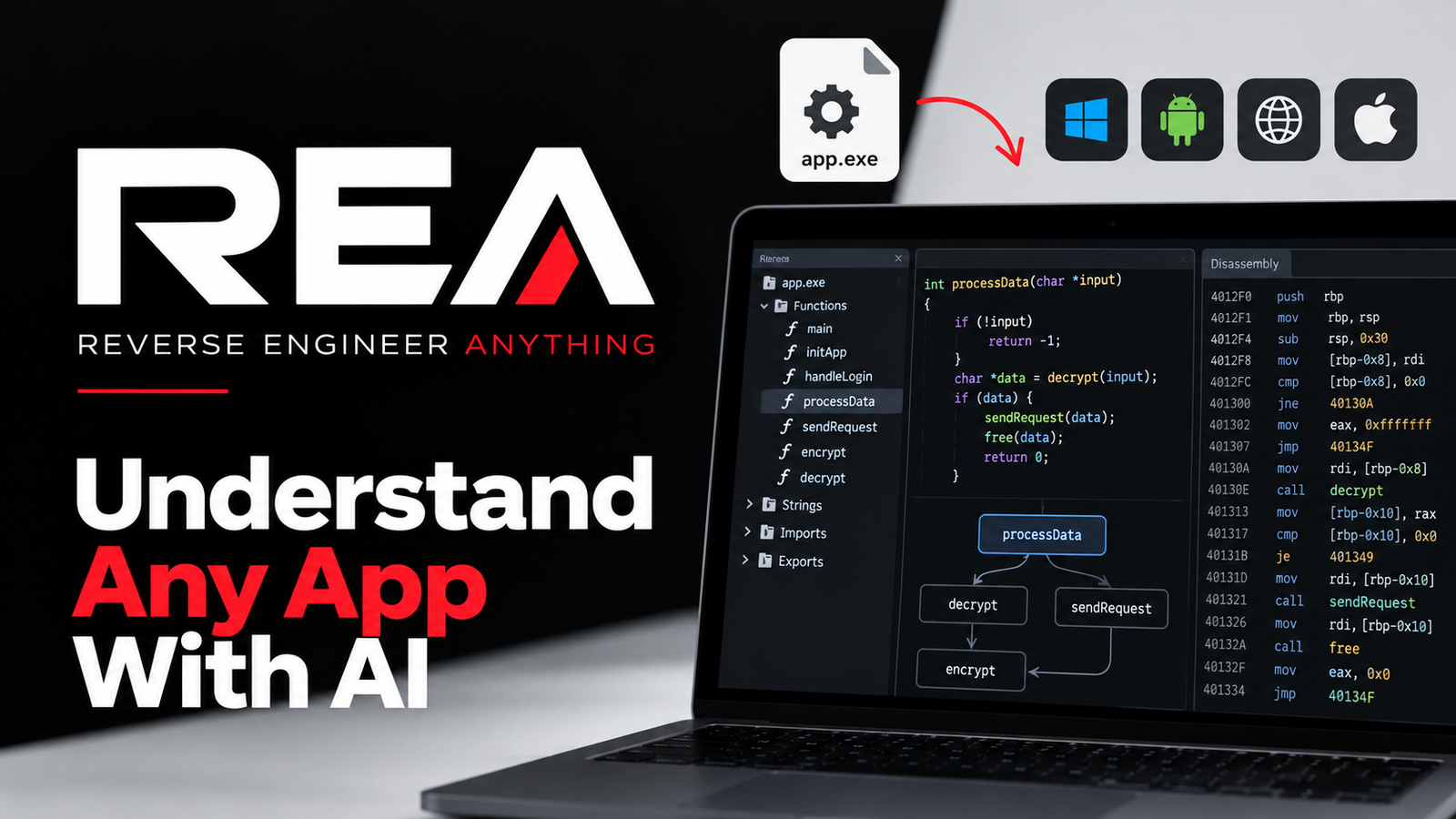
Want to understand how an application works without having its original source code? REA connects AI coding agents to software analysis tools, helping developers investigate application behaviour, trace code and rebuild individual features. Here is what it does and how to set it up.
Most AI coding tools help you build applications. But what if you want to understand how an existing application works when its source code is unavailable?
That is the problem REA (Reverse Engineer Anything) is designed to solve.
REA is an open-source project that connects AI coding agents to reverse-engineering tools through the Model Context Protocol (MCP). Instead of relying entirely on guesswork, an AI agent can inspect an application, examine available code and binary information, trace how functions connect, and use the findings to explain or recreate a feature.
The project supports investigations involving native binaries, JavaScript applications, Electron apps, .NET assemblies and websites, although available capabilities depend on the operating system, analysis provider and target being examined.
What Is REA?
REA stands for Reverse Engineer Anything. It provides a common interface through which an AI coding agent can use software analysis tools.
Imagine that you like the search functionality of an application but cannot access its original source code. You could ask an AI agent to investigate how the feature works, identify the relevant functions and data flows, explain what the evidence shows, and help implement a similar feature in your own project.
REA helps the agent investigate the existing software instead of asking it to invent an explanation from scratch.
The project combines three main components:
- REA CLI and MCP server: Exposes analysis operations through terminal commands or an AI agent.
- Analysis providers: Tools such as Hopper, Ghidra or IDA Pro that supply deeper native-binary analysis capabilities.
- AI agent workflows: Instructions that guide the agent through investigating evidence, explaining findings and developing a compatible implementation.
Static analysis of JavaScript and Electron applications can work without a native decompiler. Deeper native analysis requires a compatible analysis provider.
What Can REA Actually Do?
REA is not limited to one programming language or application type. Its capabilities depend on the analysis workflow being used.
1. Investigate applications without their original source code
REA can help an agent examine available application artefacts, identify useful strings and functions, follow references and explain how a feature appears to work.
For native applications, a compatible analysis engine can provide information such as assembly, pseudocode, symbols, function relationships and references.
The output is evidence for understanding the application—not a guaranteed recovery of its original source code.
2. Analyse JavaScript and Electron applications
JavaScript and Electron applications can contain useful structural information even when their original development repositories are unavailable.
REA can map available modules, imports, routes, source maps, storage references, inter-process communication channels and native add-ons.
For supported JavaScript application targets, static analysis can be performed without executing the application.
3. Investigate websites
REA includes browser-observation workflows that can inspect a selected page in a running Chrome-family browser.
Depending on the workflow, an agent can examine page structure, accessibility information, scripts, network metadata and screenshots.
Passive observation does not automatically click through the website or execute its JavaScript. Separate controlled browser scenarios support declared interactions and capture resulting evidence.
4. Examine native binaries and .NET assemblies
With a compatible provider, REA can help inspect compiled applications, locate functions, examine references and follow call relationships.
For .NET assemblies, it can inspect metadata and CIL instructions without necessarily executing the assembly.
5. Rebuild a feature in your own project
After investigating the existing implementation, an AI coding agent can use the findings to develop a similar feature for your own application.
For example, you could investigate a search interface and ask the agent to build a comparable version using React, Node.js and your preferred database.
The implementation still needs normal development work, testing and verification.
How REA Works: From Investigation to Implementation
REA follows a practical investigation workflow.
Step 1: Open and identify the target. The appropriate analysis provider examines the application or binary.
Step 2: Find relevant clues. The agent searches for strings, functions, symbols, routes or other useful artefacts.
Step 3: Trace relationships. It follows references and function calls to understand how the relevant components connect.
Step 4: Explain the evidence. The agent uses the available information to develop an explanation, while identifying limitations and unresolved questions.
Step 5: Build a compatible implementation. The agent uses its normal coding capabilities to create and test a version adapted to your project.
This is what makes REA interesting: it connects software investigation with AI-assisted development in the same workflow.
Complete REA Setup Guide
The easiest starting point is the official setup command. The instructions below focus on developers using Windows, while distinguishing workflows that are supported from those that may require a supported Linux or macOS environment.
Before you start
You will need:
- Node.js and npm.
- A terminal such as PowerShell or the VS Code terminal.
- An AI coding agent that REA supports, or another client that can connect to an MCP server.
- An application or software artefact that you own or are authorised to analyse.
For the current repository, the documented Node.js requirements are Node 22.19 or newer in the 22.x series, Node 24.11 or newer in the 24.x series, or Node 26 and newer. Check the official README for changes before installation.
Step 1: Install Node.js
If Node.js is not already installed, download a compatible release from the official Node.js website and complete the Windows installer.
Keep the option to add Node.js to your system PATH enabled if the installer offers it.
Once installation finishes, open a new PowerShell terminal or VS Code terminal and run:
node --version
npm --version
Both commands should display version numbers.
If Windows reports that either command is not recognised, reopen the terminal first. If the problem remains, check your Node.js installation and PATH configuration.
Step 2: Run the REA setup command
In PowerShell, run:
npx rea-agents@latest setupThis launches REA’s setup workflow.
Follow the interactive prompts to select the AI coding agents you want to configure. Review the proposed configuration changes and approve only the changes you intend to make.
The setup process can register REA’s MCP server and install its matching workflow instructions. It also provides options for connecting supported analysis tools.
Important: Setup is not the same as installing every reverse-engineering engine. Native analysis providers have separate installation and compatibility requirements.
Step 3: Choose your AI coding agent
REA documents integrations for several coding agents, including Claude Code, Claude Desktop, Codex, Cursor, Gemini CLI, Windsurf and others. The exact integrations available can change between releases.
Select the agent you actually use during setup.
After setup completes, restart the selected agent or start a fresh session so it can load the new MCP configuration and workflow instructions.
If your agent does not appear in the selection menu, check the repository’s current supported-agent documentation before attempting manual configuration.
Step 4: Check the installation
Run REA’s diagnostic command:
npx -y rea-agents@latest doctorThe diagnostic checks the host environment, dependencies, analysis tools and agent configuration. It is intended to report problems rather than modify your configuration.
You can also request structured output:
npx -y rea-agents@latest doctor --jsonIf you installed REA globally, you can generally use the rea command instead:
rea doctorStep 5: Restart your coding agent
Close and reopen the configured coding agent, or create a fresh session if that is sufficient for your client.
Ask the agent to check whether REA’s tools are available. If they are missing, verify that the MCP registration was applied to the correct client configuration and that the package command is accessible.
Do not assume setup succeeded just because the command finished. Confirm that the agent can actually discover the tools.
Your First Reverse-Engineering Task
Once the tools are connected, start with a narrow, specific question rather than asking the agent to understand an entire application immediately.
For example, use this prompt:
Investigate how the search feature works in this application.

1. Identify the relevant modules, functions, or components.
2. Trace the flow from the user interface to the underlying logic.
3. Show the evidence supporting each conclusion.
4. Separate verified findings from assumptions.
5. List anything that remains unknown.
6. Build a similar feature in my project using React and TypeScript.

Do not claim to have recovered the original source code.
Explain any limitations before implementing the feature.
Replace the example application and technology stack with the ones relevant to your task.
This approach makes the investigation more useful because it gives the agent a specific feature to follow and asks it to distinguish evidence from speculation.
Windows Users: What You Need to Know
Windows users should pay particular attention to the difference between static JavaScript analysis and native-binary analysis.
Analysing JavaScript or Electron applications
REA’s README documents a JavaScript application analysis command that can inspect an extracted application directory or an ASAR archive without executing the application.
For example:
npx -y rea-agents@latest analyze-javascript-application "D:\apps\example" --jsonReplace D:\apps\example with the actual path to your authorised target.
This workflow can return analysis results, an evidence graph, limitations and unresolved questions. It does not require MCP setup or a native decompiler for this static JavaScript workflow.
Analysing native Windows applications
Native-binary analysis is more complicated.
The current repository documents experimental Windows x64 Ghidra support for a limited class of native x86-64 Windows PE applications on local NTFS storage. This is not equivalent to full, universal Windows support across all binary types and workflows.
Before relying on it, consult the official Windows guide:
Other provider workflows may require a supported Linux or macOS environment. Do not assume that installing REA alone will make every native application analysable on Windows.
Optional: Install the REA Command-Line Interface Globally
If you want to use REA repeatedly from your terminal, the repository also documents a global npm installation.
Run:
npm install --global rea-agentsThen start the setup workflow:
rea setupYou can check available commands using:
rea --helpTo update an existing global installation, use the update command documented by your installed release:
rea updateThe globally installed CLI is optional. Using npx avoids needing a separate global installation and is a convenient way to try the tool.
Optional: Connect a Native Analysis Provider
Native-binary analysis generally requires an appropriate engine.
REA documents providers including:
- Hopper: A separate disassembler and decompiler with its own licensing terms.
- Ghidra: An existing installation can be connected where the relevant REA provider supports the host and target.
- IDA Pro: REA documents integration with compatible existing IDA MCP configurations and supported workflows.
Do not install all of them simply to try REA’s JavaScript analysis.
For example, the documented Ghidra integration requires a compatible Ghidra installation and a 64-bit Java Development Kit. The repository specifies Ghidra 12.1.4 and JDK 21 for the described Linux and macOS provider workflow; platform-specific support and requirements should be checked before proceeding.
The general process is:
- Install the analysis engine from its official source.
- Confirm that it works independently.
- Configure the relevant environment variables or provider settings.
- Run REA’s diagnostic command.
- Run setup and approve the proposed configuration.
- Confirm the provider is available before opening a target.
- An analysis provider is a separate component, not a feature that REA automatically makes available on every machine.
Is REA Safe? Does It Upload Your Applications?
The project’s documentation says its analysis is designed to run locally and that REA does not provide a hosted analysis service that uploads the target application for analysis.
However, this does not automatically guarantee that every component in your workflow is offline. Your AI coding agent or model provider may process prompts and information according to its own data policies.
Before analysing confidential software:
- Review the privacy and data-handling policies of your coding agent.
- Avoid exposing credentials, private keys or unrelated personal data.
- Inspect installation commands and configuration changes before approving them.
- Use a controlled test environment for unfamiliar software.
- Analyse only applications you own or have permission to examine.
Reverse engineering is useful for learning, interoperability, debugging and security research, but authorisation and applicable software licences still matter.
What REA Cannot Do
Despite its name, REA has important limitations.
It cannot guarantee recovery of original source code. Decompilers typically produce pseudocode or another representation of compiled behaviour, not the exact code written by the original developer.
It cannot understand every application equally well. Results depend on the target format, available metadata, analysis provider and platform.
It cannot prove every hypothesis automatically. Some relationships remain ambiguous, and the agent may need additional evidence or testing.
It does not automatically clone an application. REA supports investigation; the AI agent uses the findings to implement a compatible feature. The result still needs testing and may behave differently from the original.
These limitations are important because they distinguish evidence-backed reverse engineering from AI-generated guesses.
Final Verdict: Is REA Worth Trying?
REA is worth exploring if you are a developer who wants to understand unfamiliar software, investigate application behaviour or recreate individual features without access to the original source code.
Its biggest advantage is the combination of analysis tools and AI-agent workflows. Instead of manually piecing together every function, reference and module, you can ask an agent a focused question and have it investigate the available evidence.
The easiest starting point is:
npx rea-agents@latest setupFor a first experiment, choose a small JavaScript or Electron application you are authorised to inspect, run the static analysis workflow, and ask your coding agent to explain one feature with supporting evidence.
Just remember: REA helps AI investigate software; it does not make reverse engineering perfect or guarantee an exact clone.