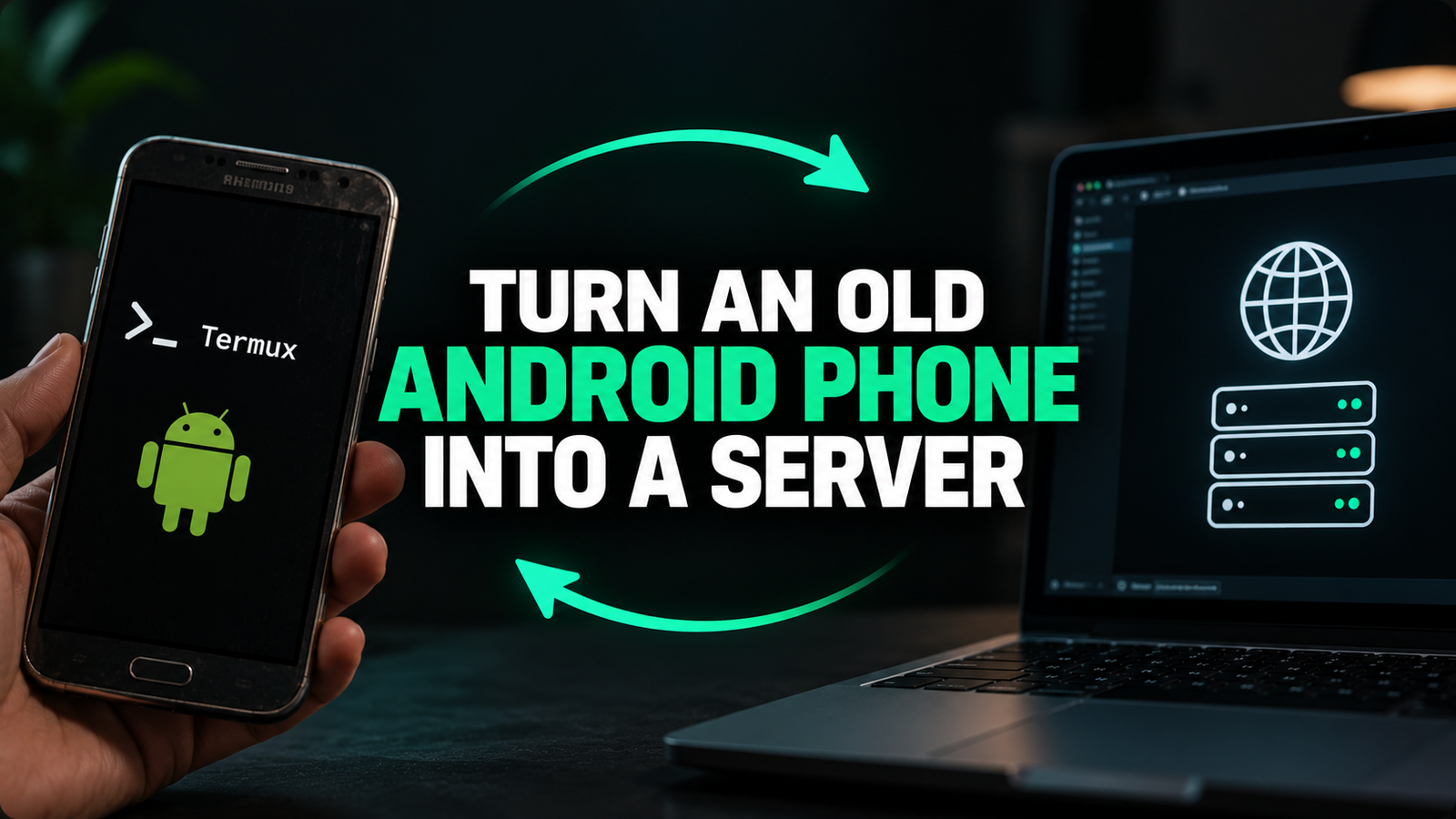
Got an old Android phone lying around? You can turn it into a useful local server for hosting files, websites, Python APIs, automation scripts, and lightweight services.
You don’t need to turn the phone into a traditional data-center server. Instead, we’ll use Termux to create a Linux-like environment on Android and run different server tools inside it. Your laptop can then connect to the phone over the same Wi-Fi network.
What You Can Build
With this setup, your phone can work as:
- A personal file server
- A local website server
- A small Python API server
- An automation box
- A Git/development machine
- A local monitoring dashboard
- A lightweight AI helper
Android phone → Termux → Linux-like environment → Services → Laptop over Wi-Fi.
Before You Start
Before starting, keep these things in mind:
- Keep your phone and laptop connected to the same Wi-Fi network.
- Use a phone that you are comfortable leaving plugged in for long periods.
- If you want services to keep running in the background, disable aggressive battery optimization for Termux. Android can otherwise stop background processes.
- Start with a local server. Don’t expose SSH or administrator services directly to the public internet until you understand authentication, firewalling, and updates.
note: use light mode to see the command
Step 1: Install Termux
Install a current Termux build from one consistent official source. Do not mix the main Termux app and its plugins from different sources because different APK sources can use different signing keys.
Official sources:
- Termux GitHub: https://github.com/termux/termux-app
- Termux on F-Droid: https://f-droid.org/packages/com.termux/
Step 2: Set Up Termux
Open Termux and run these commands one at a time:
pkg update && pkg upgrade -yThen give Termux access to your phone’s shared storage:
termux-setup-storageNow install some basic tools:
pkg install git curl wget nano -yThe pkg command is Termux’s package-management interface. These commands update the package repositories and install the basic tools needed for the setup.
Step 3: Install Python
Python is useful for automation scripts, APIs, data-processing tasks, and lightweight services.
Run:
pkg install python -yCheck that Python was installed:
python --versionYou can also check pip:
pip --versionStep 4: Install OpenSSH
SSH lets you control your Android phone remotely from your laptop.
Install OpenSSH:
pkg install openssh -yCreate a password for your Termux user:
passwdStart the SSH server:
sshdNow find your phone’s local IP address:
ip addr show wlan0Look for the phone’s Wi-Fi IP address.
Connect From Your Laptop
On your laptop, run:
ssh -p 8022 <termux-user>@<PHONE_IP>Replace <termux-user> with your Termux username and <PHONE_IP> with the IP address shown by the previous command.
Termux commonly uses port 8022 for SSH. Once the basic setup is working, SSH keys are preferable to relying only on passwords.
Step 5: Install Nginx
Nginx can turn your phone into a lightweight web or file server.
Install it:
pkg install nginx -yStart Nginx:
nginxNow test it locally:
curl http://127.0.0.1:8080Termux’s Nginx configuration can differ from a normal Linux installation, so don’t automatically assume the standard Linux configuration path or port. Check the configuration installed on your device.
Create a Simple Website
Create a directory for your website:
mkdir -p ~/siteCreate a basic HTML page:
echo "<h1>Hello from my old Android phone!</h1>" > ~/site/index.htmlNow configure Nginx to serve the ~/site directory. Check your Nginx configuration to identify the active document root and listening port.
- PHP2Shell: Two Critical PHP Vulnerabilities Discovered — Update Your Server Now
- Elevenlabs alternative: OmniVoice-This Open-Source AI Tool Can Clone Your Voice in Seconds
Step 6: Automate Tasks
You can also use the phone to run scripts automatically.
First create a directory for your scripts:
mkdir -p ~/scriptsCreate a script:
nano ~/scripts/backup.shAdd this code:
#!/data/data/com.termux/files/usr/bin/bash
date >> ~/backup.log
echo "Backup job ran" >> ~/backup.log
Save the file and make it executable:
chmod +x ~/scripts/backup.shBefore scheduling it, run the script manually and make sure it works.
For Termux-specific scheduled tasks, check the available scheduler:
termux-job-scheduler --helpYou can then use the scheduler supported by your installed Termux environment to run scripts periodically. Android’s power-management rules can affect background jobs, so test scheduled tasks on your particular phone and Android version.
Step 7: Install Node.js (Optional)
If you want to run JavaScript or TypeScript applications, you can also install Node.js.
Run:
pkg install nodejs -yCheck the installation:
node --versionThen:
npm --versionNode.js is optional. Python is enough for many projects, but Node.js can be useful for lightweight web applications and agent-style tools.
How Everything Fits Together
Your final setup can look like this:
HOME WI-FI
│
├── LAPTOP
│   └── SSH :8022
│
└── OLD PHONE
    └── Termux
        ├── Python
        ├── Nginx
        ├── Node.js
        └── Scheduled jobs
Your laptop connects to the phone through SSH, while the phone runs the different services inside Termux.
What Can You Build With It?
Once the basic setup is complete, you can use the phone for several projects:
- Personal file server: Store and access files over your home network.
- Local website: Host HTML, CSS, and JavaScript using Nginx.
- Python API: Run a small REST API.
- Automation box: Run scheduled scripts.
- Git/dev box: Store repositories and run lightweight development tools.
- Home dashboard: Host a local monitoring dashboard.
- Lightweight AI helper: Run a small service or connect to cloud AI APIs.
Important: Your Phone Is Not a Data Center
An old Android phone can run real server software, but Android is still managing the device.
Battery optimization, temperature, memory, storage, and network availability can affect reliability. This setup is excellent for learning, home labs, experimentation, and lightweight services, but it should not automatically be treated as a production-grade 24/7 server.
Security Tips
For your first setup, keep everything inside your local network.
Do not expose SSH, admin panels, or other services directly to the public internet unless you understand authentication, firewall configuration, updates, and the associated security risks.
Also:
- Use a strong password.
- Prefer SSH keys once your basic setup works.
- Keep Termux and its packages updated.
- Disable battery optimization only when persistent background services are actually needed.
- Never expose SSH or admin services publicly with weak or default credentials.
Useful Resources
- Termux: https://github.com/termux/termux-app
- Termux Packages: https://github.com/termux/termux-packages
- Python Documentation: https://docs.python.org/3/
- OpenSSH: https://www.openssh.com/
- Nginx Documentation: https://nginx.org/en/docs/
- Node.js Documentation: https://nodejs.org/en/docs
The PDF also references a community video walkthrough for setting up an Nginx web server in Termux. It is a community tutorial, not official Termux documentation, so commands should be checked against your current Termux environment.
Bottom Line
You don’t need an expensive Raspberry Pi or dedicated computer to start learning about servers. An old Android phone, Termux, Wi-Fi, and a few open-source tools can give you a surprisingly capable home lab.
The best beginner path is to start with a local web/file server, then add SSH access, and finally experiment with Python automation.


2 thoughts on “How to Turn an Old Android Phone Into a Server Using Termux”